Teacher view
The following manual will describe how you as a teacher set up a CoTinker learning activity and use it in your teaching. The manual describes how the teacher view in CoTinker works. Teacher view is your teacher interface, where you can create groups, modify settings in the CoTinker module, and more.
We recommend that you and the students use the Chrome browser for optimal performance. CoTinker has primarily been built and tested on Chrome. However, other browsers should also work.
Teacher view and starting a learning activity
The following section describes how teacher view in CoTinker works and how you set up a CoTinker learning activity.
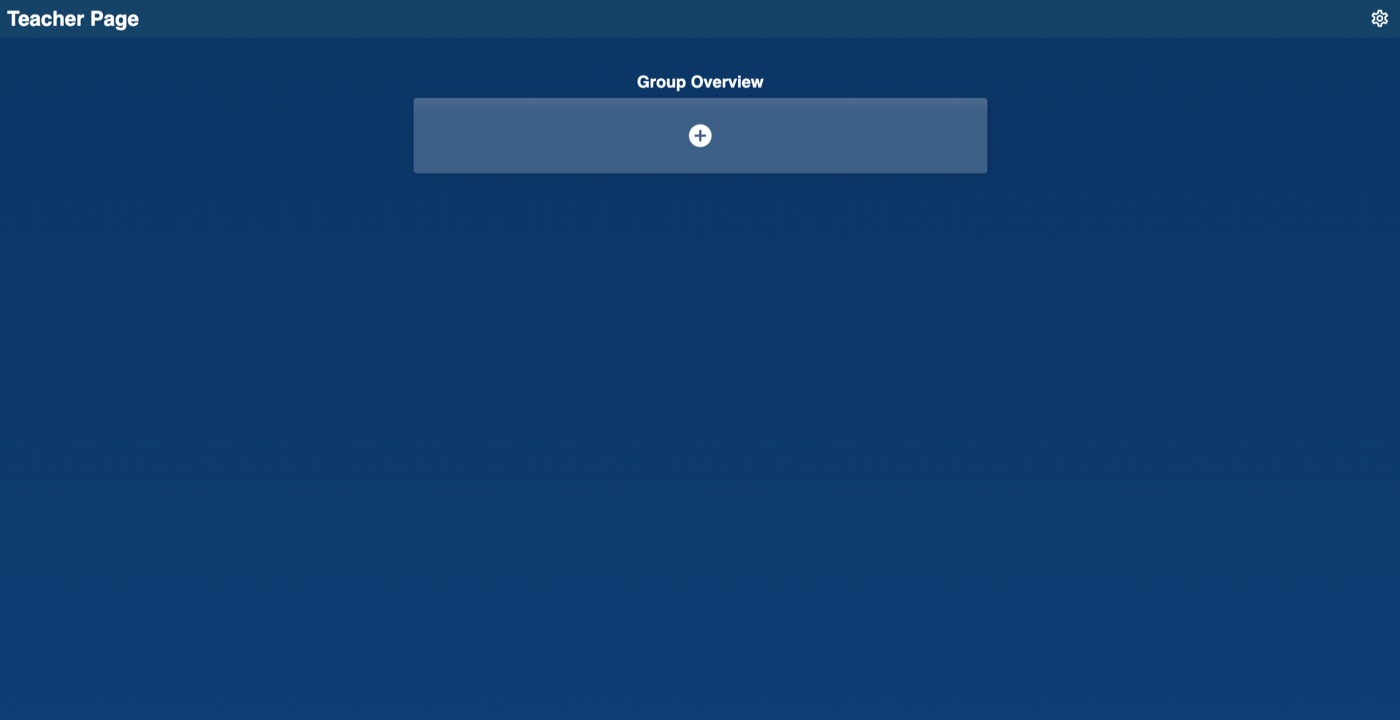
As a teacher, you have a link to a teacher view for a specific CoTinker learning activity. This link is only for you as a teacher and should not be shared with your students. Below you can see how teacher view looks the first time you access it.
Group Overview
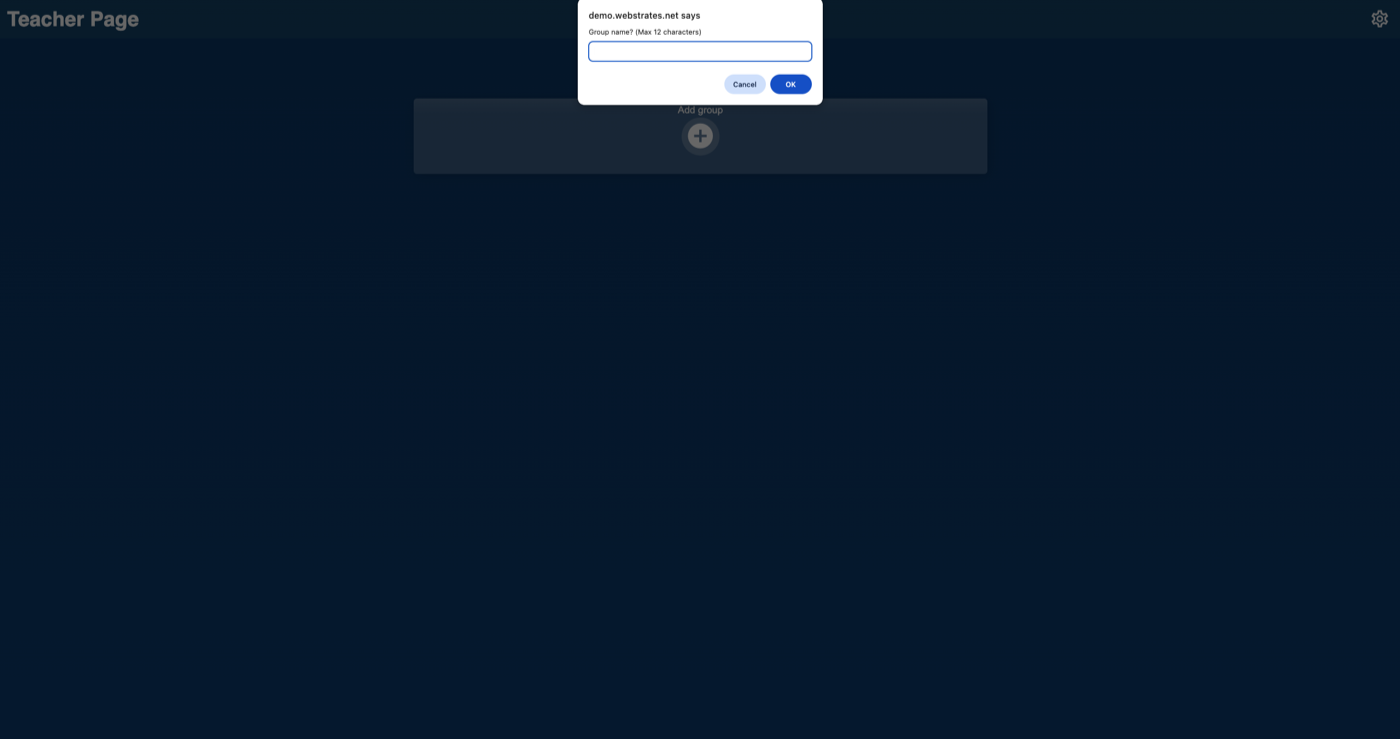
The key feature for teachers is Group Overview shown in the center. This is where you can create groups that students will work within. By clicking on “+”, a pop-up window opens where you can create a new group and name it. The group name can be a maximum of 12 characters and each group can contain a maximum of 5 students. Each group name must be unique.
Group links
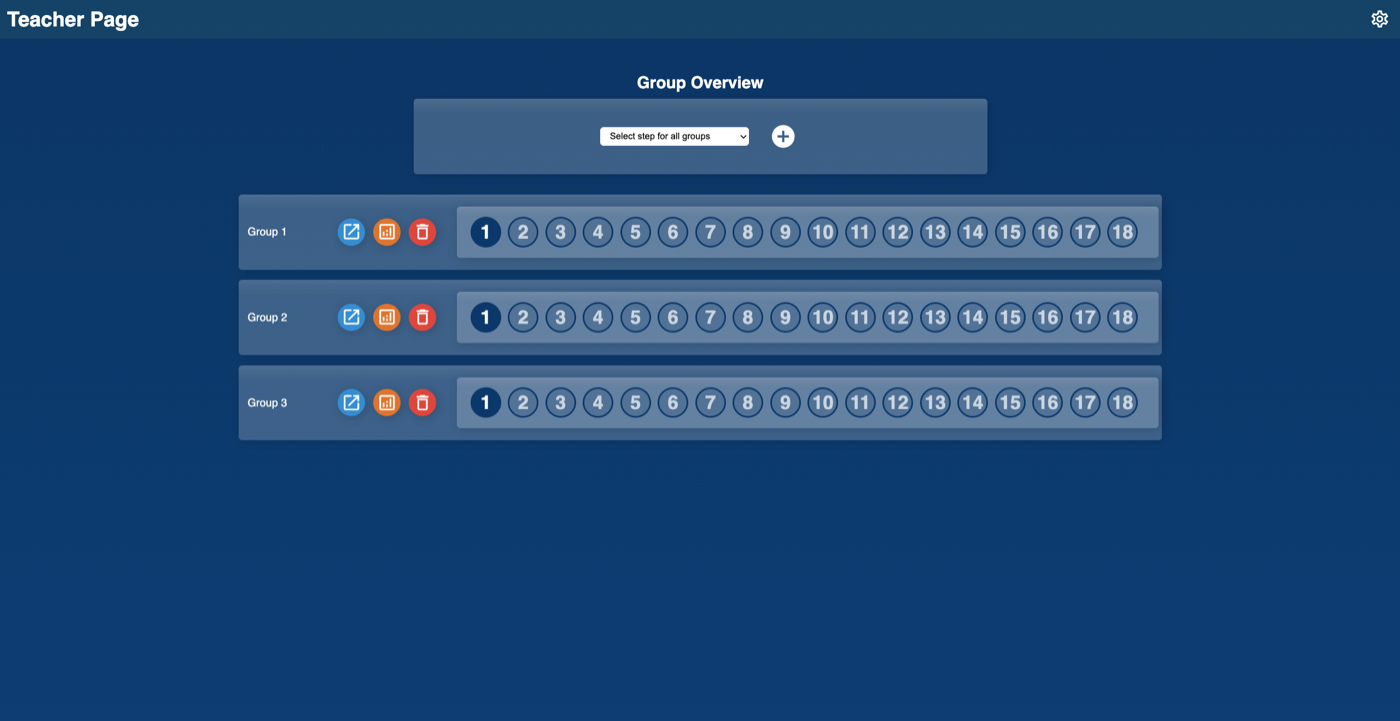
When you have created groups, you can then provide links to the different groups. To the right of the group name there are three buttons: The blue button opens the unique link to a group, which you should share with the students. A link saves all data and activity for the specific group (e.g., code that students have written or edited, chat messages, answers to questions, etc.) and most importantly, which slide or step the students have reached. If a CoTinker learning activity spans multiple lessons and days, all data is saved. You can therefore safely spread a module over multiple lessons and days without worrying that students will have to start over.
The orange button opens a window with statistics for each group. Here you can see how much time the group has spent on a slide or step and the number of events (such as chat messages, code editing, etc.) that are associated with the group. The red button deletes a group and all activity that the group has performed. Be very careful about deleting groups, as all data for that group will be deleted and the students will have to start over in a new group.
Moving groups
When you have created one or more groups, a dropdown menu appears at the top, which you can use to move all groups to a specific slide or step at the same time. A slide or step has both a number and a title, which you will be able to see in the dropdown menu.
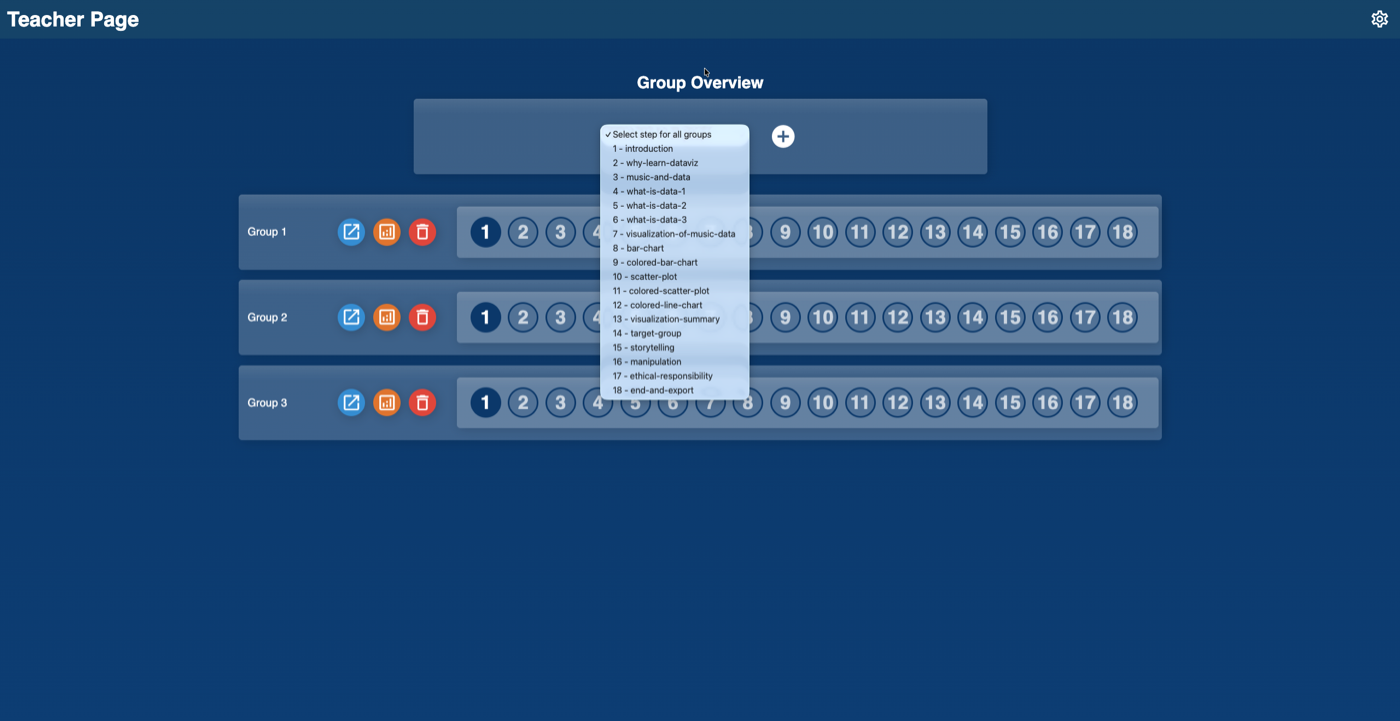
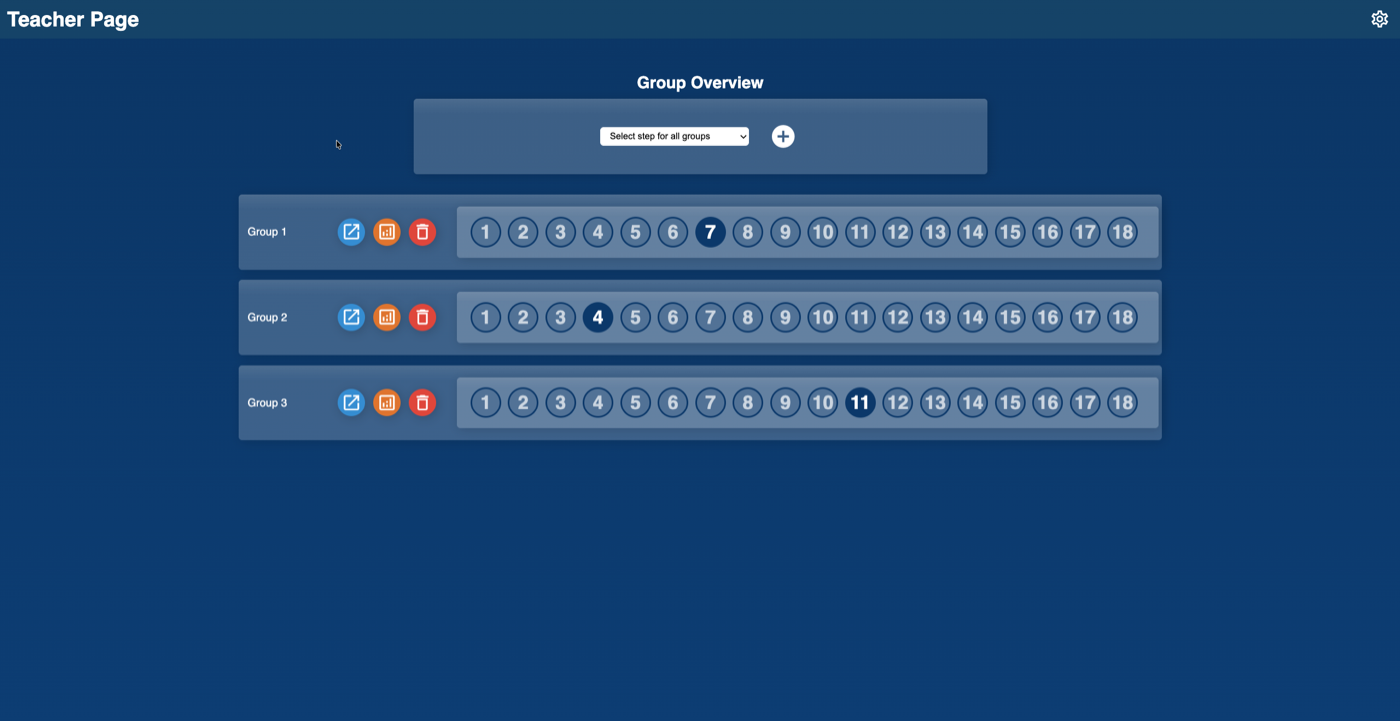
To the right of the group name and the 3 buttons there is a series of circles with numbers inside. Each circle with a number represents a specific slide or step in the CoTinker module. This helps provide a visual overview of how far each group has progressed. A dark circle shows that the group has reached this specific slide or step. As a teacher, you can move a specific group to a specific slide or step by clicking on a circle, which opens a pop-up menu where you can confirm whether to move the group. This moves only that group and not the other groups.
Working across multiple lessons
CoTinker can be used across multiple lessons. Both the link to the teacher view and the students group link saves all work continously. The continue working, simply reopen the links again.
Group size
The recommend group size is 3-4 students per group. In our experience, this gives the best group dynamic when working in CoTinker.
Learning activities
The following section describes the different learning activities currently available in CoTinker and how they can be used in teaching. To use CoTinker, both you and your students must use the Chrome browser. Other browsers will not work optimally and various features in CoTinker will not function correctly.
What digital traces do we leave

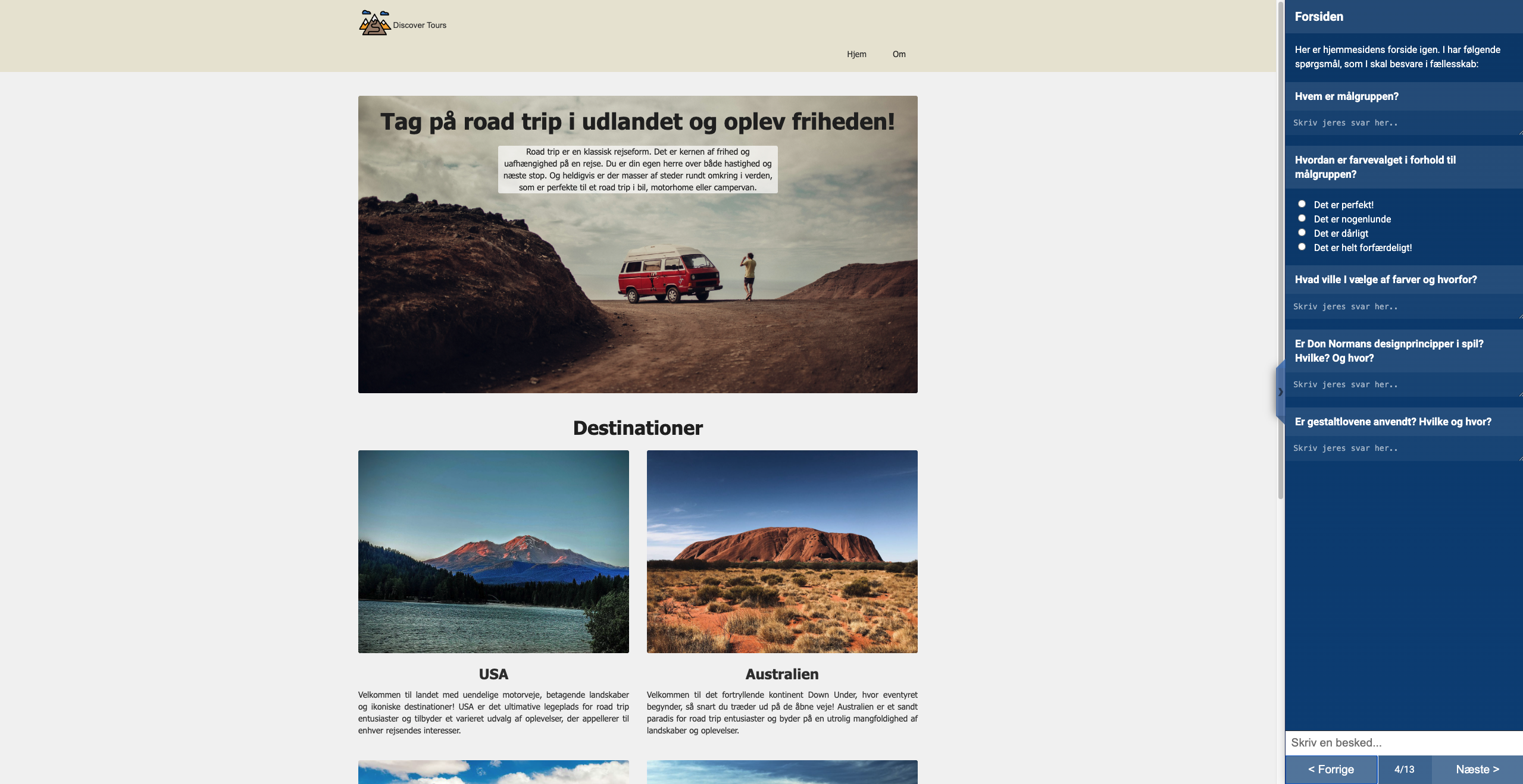
This activity explores the digital traces we leave behind online. On the surface, students are asked to navigate a website inside CoTinker and critique its design — a good opportunity to revisit design theory, target audiences, and visual principles.
Midway through, unlocked by the password snydt123, the real topic is revealed: CoTinker has been quietly collecting data about the students the entire time. They are then presented with visualisations of their own data, sparking a concrete discussion about online tracking.
How do you control a video game

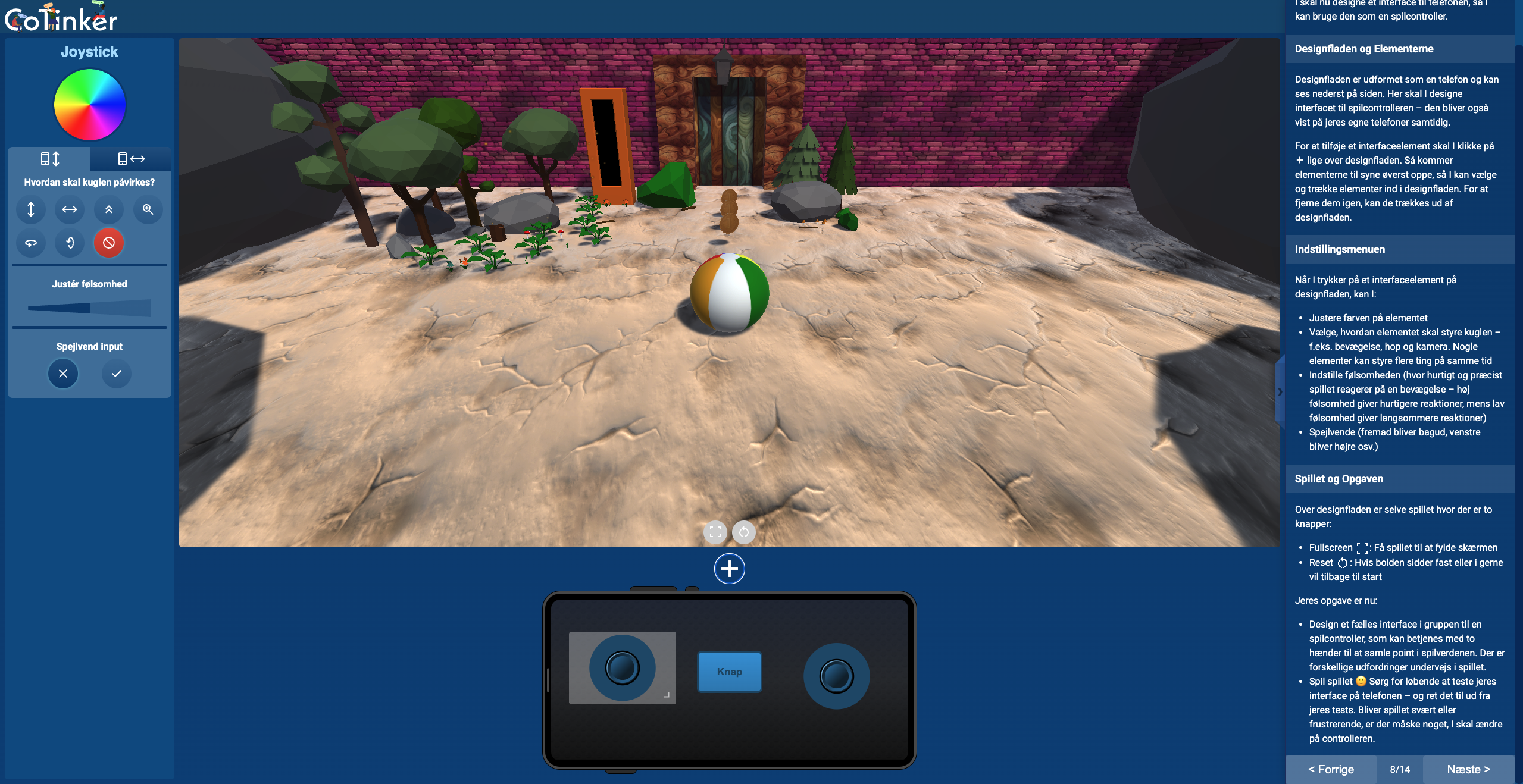
This activity focuses on how video games are controlled and how students can design a game controller on a smartphone with an emphasis on accessibility. Working in groups, students design a controller through an iterative process of building and testing — continuously refining their design as they encounter new in-game challenges that demand a redesign.
Students play a game running inside CoTinker using a controller they build on their phone. To connect their phone, students scan a QR code provided from their group link in CoTinker — instructions for how to do this are shown directly to the students inside the activity.
Note that the first time students open a group link, the page may take a while to load. This is because the Unity game needs to load, which typically takes 30–60 seconds on a normal internet connection. If the internet is slow, it may take longer — in that case, wait for the page to finish loading or switch to mobile data if possible.
How does an online shop work

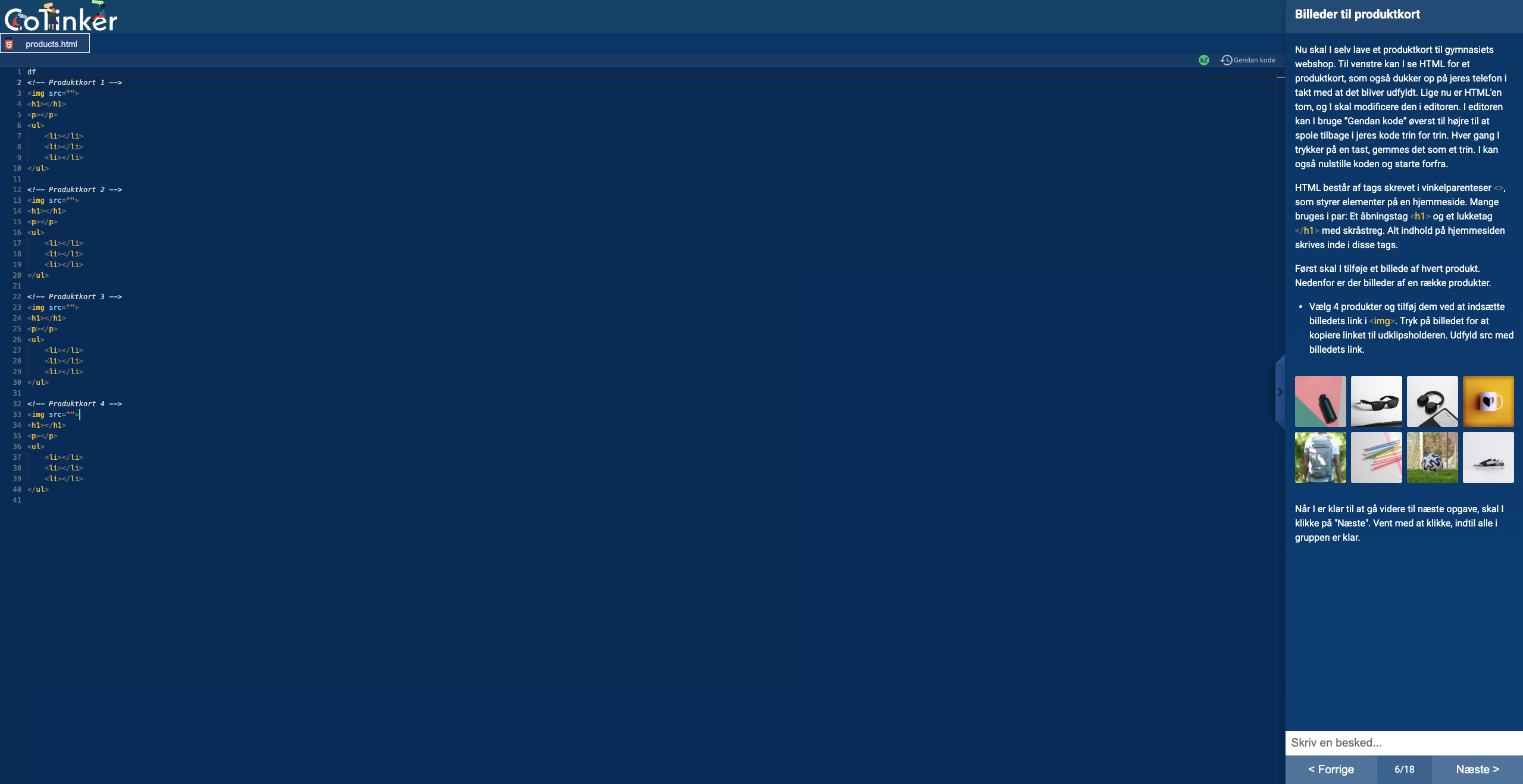
This activity covers the layers of the software stack behind a web shop: HTML, CSS, and JavaScript. Working in groups, students build a web shop for a fictional school by completing tasks that involve modifying all three layers. As they work, students can see their web shop update live on their phones, allowing them to test ideas continuously.
Students connect their phone by scanning a QR code provided from their group link in CoTinker — instructions for how to do this are shown directly to the students inside the activity.
How and why do we model data?

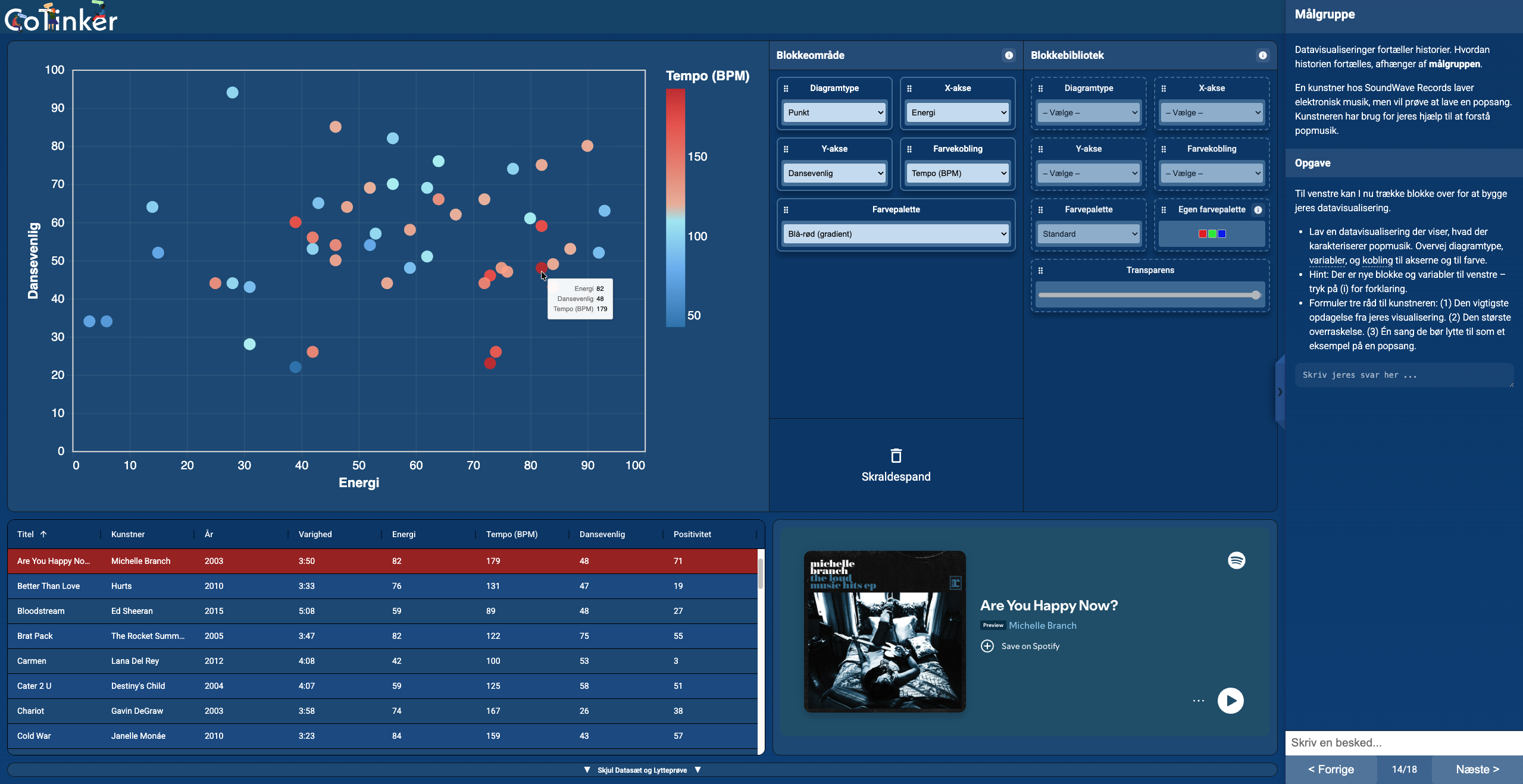
This activity explores data visualisation using music data. Working in groups, students investigate how song data can be transformed into visualisations using a block-based programming tool. As they collaborate, they can continuously see how their visualisations develop and experiment with different approaches.